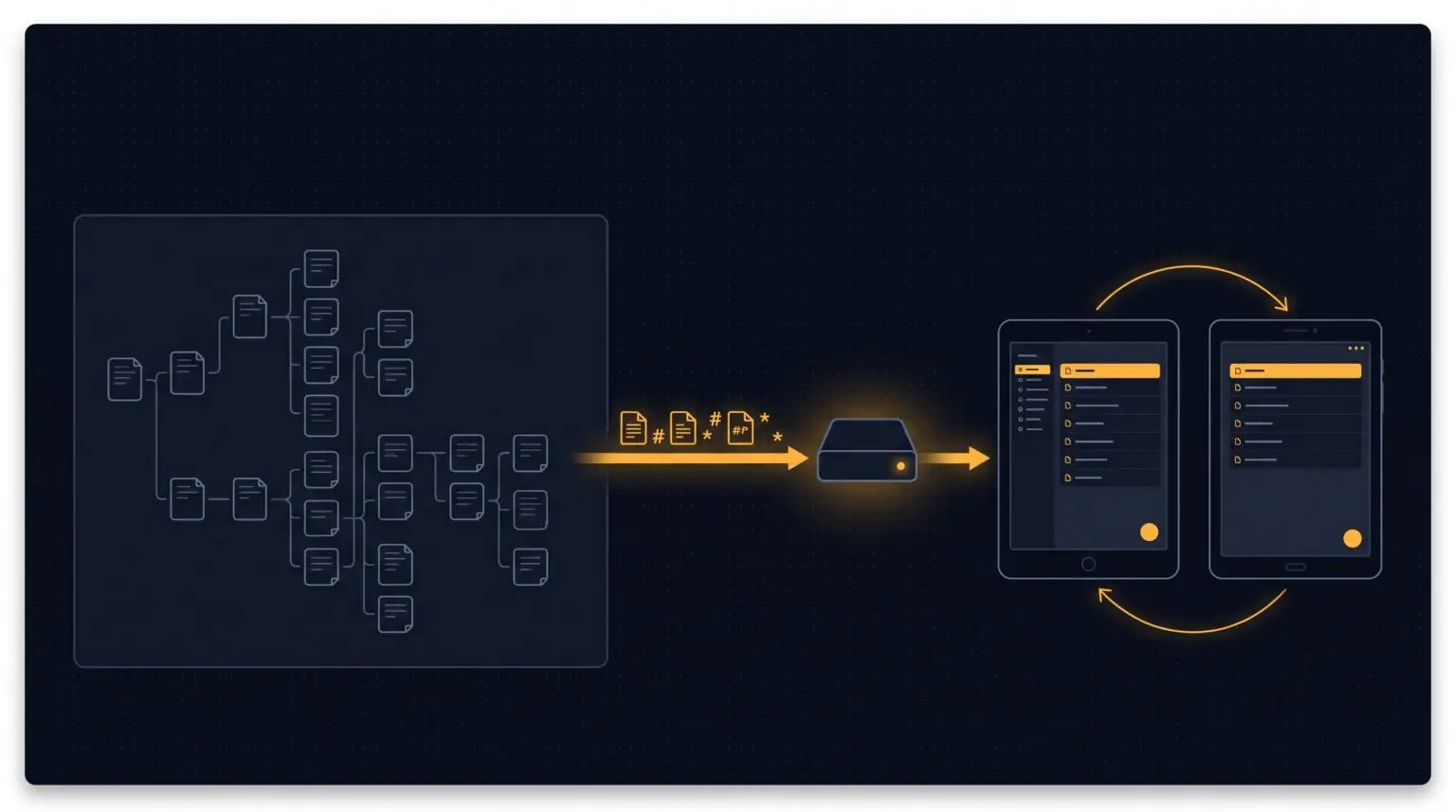
For years I kept every course note, certification study guide and homelab build in CherryTree, a free desktop note-taking app. By this year it held about 46,000 pages across 284 notebooks. Then I started studying on a tablet and hit a wall: CherryTree has no iPad or Android app. My notes were stuck on one computer.
This is Part 1 of how I moved everything to Joplin, a free notes app for computers, phones and tablets, synced through my own server at home instead of someone else’s cloud. Part 1 covers the planning, the conversion, checking that nothing was lost, and getting a first pilot working on both tablets.
How to read this post
If you’re new to this, read the plain-language parts and the ⚠ Pitfall boxes; they’re the lessons that cost me the most time. If you write code, open the “For coders” sections for the technical detail.
At a glance
| Notes moved | about 46,000 pages, 14,000 images, 374 code blocks |
| Conversion time | 8 seconds for the whole collection |
| Words kept | 99.97%, checked word by word |
| Cost | $0: free apps, an old PC at home, free Tailscale |
| Devices | iPad, Android tablet, Linux desktop |
1. Decide what you actually need
Before touching a single file, I listed the options:
- Stay with CherryTree and export web pages. Fine if you only need to read on a tablet. Simple, but no editing.
- Obsidian. Notes are plain files in a folder. Great if you like managing files yourself.
- Joplin. Real apps on every device, with sync built in, including to a server you run yourself.
I wanted to edit on the tablets and keep my notes at home, so I chose Joplin with my own sync server. A sync server is a computer that keeps the master copy of your notes and hands updates to each device.
⚠ Pitfall: migrating before you know why
“Read on a tablet” and “edit on a tablet” are different problems. If reading is enough, an export might solve it in an afternoon with no migration at all. Decide first; it changes everything that follows.
2. Take stock of what you have
I counted everything before choosing tools: 284 notebooks, about 46,000 pages, 14,000 pictures (1.6 GB), 374 code blocks and 15 tables. Some notebooks were huge (one had 1,700 screenshots), and some were nearly empty.
⚠ Pitfall: the notebooks you forget are the most personal ones
My first count only looked for CherryTree’s usual file type and missed four password-protected notebooks: personal, health and admin notes. They use different file types. Search for every format your app can save in before you plan.
For coders: what a CherryTree file really is
A .ctb notebook is a SQLite database, which makes it easy to read. Open it read-only so you can never damage the source:
import sqlite3
con = sqlite3.connect("file:notes.ctb?mode=ro", uri=True)
The useful tables are node (each page, with its rich text stored as XML), children (the tree), image, codebox and grid (tables). Three surprises:
node.levelis always 0. Rebuild depth fromchildren.- Images, code blocks and tables live outside the text, anchored by a character offset, and each one takes exactly one offset position.
- A table’s header row is stored last.
Other formats: .ctd is the same model as XML, and .ctx/.ctz are 7-Zip-encrypted versions of each.
3. Convert everything to Markdown
Markdown is a simple way to format plain text, like **bold** or # Heading. Almost every notes app can read it, which makes it a good “moving box” for notes: convert once, and you’re not locked into one app.
A small program copied every CherryTree page into a Markdown file: notebooks became folders, pages became files, and pictures went into an attachments folder next to them. The whole collection took 8 seconds.
⚠ Pitfall: you’ll lose some formatting
Text colours, font sizes and centred text have no Markdown equivalent. Bold, italics, headings, lists, links, code and pictures survive. Highlights can be kept. If you use colour to mean something, like red for exam traps, decide on a replacement before you convert.
⚠ Pitfall: symbols in tech notes turn into formatting
Markdown treats some characters as commands. In my notes, pasted config files full of # comments became giant headings, and docker stop <hash> vanished as if it were a web tag. Two $ signs on one line, like $HOME and $PATH, would also turn into maths. The converter has to “escape” these symbols so they show as plain text. Spot-check pages full of code or commands.
For coders: the conversion details that bit me
The core merges text runs and embedded objects by offset:
objs = sorted(node.objects, key=lambda o: o.offset)
stream, pos, k = [], 0, 0
for text, attrs in node.segments:
    i = 0
    while i < len(text):
        while k < len(objs) and objs[k].offset <= pos:
            stream.append(objs[k]); k += 1; pos += 1   # an object uses one position
        n = len(text) - i
        if k < len(objs):
            n = min(n, objs[k].offset - pos)
        stream.append((text[i:i + n], attrs)); i += n; pos += n
stream.extend(objs[k:])- Escape
<and#unconditionally. A look-ahead rule failed because CherryTree had stored<andhashin two separate formatting runs. - A run of lines starting with
#is pasted config; a single isolated## Titleis usually pasted AI-chat Markdown, so restore that one as a heading. - Escape
_and*only at word boundaries, so__init__stays literal andsnake_casestays readable. - Indented plain lines get non-breaking spaces; four normal spaces would turn them into a code block. Cap list nesting at one level deeper than the item above for the same reason.
- Percent-encode
(and)in link targets: one unbalanced parenthesis in a note title cuts the link short. - Write YAML front matter (
title,created,updated,tags). Joplin’s “Markdown + Front Matter” importer reads all four, so original titles with:or/survive even though file names can’t hold them.
4. Prove nothing was lost
“It ran without errors” doesn’t prove 46,000 pages arrived intact. I used three separate checks:
- Word by word: every word in every original page must appear in its new file. Result: 99.97% of 681,321 words. The rest turned out to be pages I’d pasted from elsewhere that were already in Markdown.
- Read it like an app would: a Markdown reader counted the headings, code blocks, tables and pictures, which must match the original counts.
- A real test import: a few notebooks imported into a throwaway copy of Joplin, then checked inside its database.
⚠ Pitfall: your checker can be wrong too
My first word check said 0.4% of words were missing, which looked alarming. Most of it was a bug in the checker: it was removing backslashes, so C:\Users became C:Users. Test your test before you trust it, or you’ll waste hours “fixing” things that aren’t broken.
⚠ Pitfall: every word can be there and still look wrong
The word check passed while 48 notes had lists or indented text displaying as grey code boxes. Only the “read it like an app” check caught that. Check both content and appearance.
5. Set up your own sync server
Three free tools did the heavy lifting:
- Joplin Server, the official sync server, keeps the master copy of the notes.
- Docker runs server software in neat, self-contained boxes that are easy to start, stop and update. Joplin Server and its database are two such boxes on an old, always-on PC at home.
- Tailscale links my devices into a private network, so the tablets can reach the home server from anywhere without opening anything on my router to the internet.
I had two old PCs to choose from. I picked the one that already ran Tailscale, which also keeps the live notes and their backups on two different machines.
⚠ Pitfall: the default admin password
Joplin Server starts with a default login (admin@localhost / admin). Change it immediately, before anything else. Then create a separate everyday account for your devices, and keep the admin account for managing the server.
⚠ Pitfall: the server “doesn’t work” at its local address
Typing the home PC’s network address into a browser gave “404”. Joplin Server only answers at the exact web address it was set up with, and ignores everything else. Use the full name you configured.
⚠ Pitfall: confirmation emails that never arrive
Changing the admin email and creating a user each send a “confirm your account” email. A home server can’t send email until you set that up, so nothing arrived. The messages were still saved inside the server’s database, so I could pull the links out from there. Self-hosting means owning the boring parts too: email, backups, passwords.
For coders: the Docker Compose stack
services:
  joplin-db:
    image: postgres:16
    environment: { POSTGRES_USER: joplin, POSTGRES_PASSWORD: ${POSTGRES_PASSWORD}, POSTGRES_DB: joplin }
    volumes: [joplin_db:/var/lib/postgresql/data]
    healthcheck: { test: ["CMD-SHELL", "pg_isready -U joplin -d joplin"], interval: 10s }
  joplin:
    image: joplin/server:3.7.2          # pin the version; upgrade on purpose
    container_name: joplin               # tsdproxy uses this as the tailnet hostname
    depends_on: { joplin-db: { condition: service_healthy } }
    ports: ["22300:22300"]
    environment:
      APP_PORT: 22300
      APP_BASE_URL: https://joplin.<your-tailnet>.ts.net
      DB_CLIENT: pg
      POSTGRES_HOST: joplin-db
      POSTGRES_DATABASE: joplin
      POSTGRES_USER: joplin
      POSTGRES_PASSWORD: ${POSTGRES_PASSWORD}
    labels: { tsdproxy.enable: "true", tsdproxy.container_port: "22300" }
volumes: { joplin_db: {} }- Generate the database password on the server (
openssl rand -hex 24) into a mode-600.env, so it never passes through a chat or your shell history. - tsdproxy gives each labelled container its own tailnet name with HTTPS. Without an auth key, every new node logs a one-time
login.tailscale.com/a/…approval link. Right after approval, HTTPS fails withunexpected eoffor about a minute while the certificate is issued. - For a local health check, send the expected host:
curl -H "Host: joplin.<tailnet>.ts.net" -H "X-Forwarded-Proto: https" http://localhost:22300/api/ping. Otherwise you get “Invalid origin”. - Unsent emails sit in the
emailstable, confirmation links included.
6. Connect the tablets
On the iPad and the Android tablet I installed two free apps: Tailscale, which joins the private network, and Joplin. In Joplin’s settings I chose Joplin Server as the sync target and entered the server’s address and my everyday account.
⚠ Pitfall: “wrong password” when the password is right
The login worked in Safari but failed in the Joplin app. The iPad keyboard had quietly capitalised the first letter of my email address. The server logs gave it away: an unknown email is rejected instantly, a wrong password only after a short delay. When a login works in one place but not another, retype it by hand. And don’t tap retry ten times: the server locks you out for a minute.
⚠ Pitfall: notes sync, but the pictures don’t show
On iOS every picture was a blank placeholder. The cause was Joplin’s Attachment download behaviour setting: Manual means you tap each picture to fetch it. Auto downloads a note’s pictures when you open it, without filling the tablet with every image up front.
Tailscale also showed a red DNS warning triangle on both tablets. It turned out to be harmless: the tablets could still reach the server.
7. Start with a pilot, not everything
Instead of moving 46,000 pages at once, I moved two notebooks first (about 1,800 pages and 2,500 pictures) and used them on the tablets. CherryTree stayed untouched until I was sure.
⚠ Pitfall: old hardware is fine for serving, slow for heavy lifting
Importing and uploading the pilot on the home server took 40 minutes, because its old spinning hard drive could only save 2–5 pictures a second. The same job on my desktop’s SSD ran dozens of times faster. Do the big jobs on your fastest machine and let sync carry the results to the server.
For coders: Joplin CLI gotchas
joplin import <dir>imports into the currently selected notebook, not a new one named after the folder, so my later imports ended up nested inside the first. Create the notebook (mkbook, with-p <parent-id>for nesting), then pass its ID as the import target; names like “Section 1- Introduction” repeat.- Make the import script refuse to run if a target notebook already exists, so a second import can’t duplicate everything.
joplin ls /also lists nested notebooks; query the profile’sdatabase.sqlitefor top-level ones instead. - A locked-down npm (install scripts blocked) won’t build the native modules:
npm install -g joplin --ignore-scripts, thennpm approve-scripts sqlite3 sharp && npm rebuild sqlite3 sharp.keytarisn’t needed for the CLI. - A brand-new CLI profile creates a “Welcome!” notebook on first run, and it syncs to everyone. Delete it.
8. Backups before you trust it
Every night the server now:
- backs up its database and copies the backup to my other home machine,
- exports every note as Markdown and saves it in git, a tool that records every change so I can see or undo history.
Then I did a restore drill: I rebuilt the whole server from the backup copy on the other machine and checked that every note and picture was there.
⚠ Pitfall: sync is not a backup
Sync copies your mistakes to every device instantly. Keep a separate backup on a different machine, and actually try restoring it once. A backup you’ve never restored is a hope, not a plan.
⚠ Pitfall: clean-up commands can reach further than you think
While cleaning up after the restore drill, I ran docker volume prune. That command deletes every unused Docker storage volume on the machine, not just the test one. Luckily the logs showed it only removed the test volume. But on a machine running other services (that one also hosts my photo library), always remove exactly what you created, by name.
Your checklist for a move like this
- ☐ Decide what you need: reading on a tablet, or editing too?
- ☐ Count everything, including locked or password-protected notebooks.
- ☐ Decide what formatting you can live without.
- ☐ Check the conversion three ways: content, appearance, and a real import.
- ☐ Change default passwords the moment a server starts.
- ☐ Reach your server through a private network, not an open port.
- ☐ Pilot a few notebooks before moving everything.
- ☐ Set up backups on a second machine, and restore them once.
- ☐ Pick a day to stop editing in the old app.
Coming in Part 2
Moving the remaining 44,000 pages in four batches, ordered by how recently I’d used each notebook. Plus a sneaky bug where Joplin silently skipped 88 pictures, and how I caught and fixed it.
Glossary
- CherryTree: a free desktop notes app that keeps each notebook as a tree of pages.
- Joplin: a free notes app for computers, phones and tablets that can sync between them.
- Markdown: a simple way to format plain text that most notes apps understand.
- Sync server: the computer holding the master copy of your notes.
- Self-hosting: running a service on your own machine instead of paying a company.
- Docker: runs server software in self-contained boxes.
- Tailscale: a private network between your own devices.
- Git: records every change to files, so you can see or undo history.
- Pilot: a small trial run before the real move.
- Restore drill: rebuilding from a backup on purpose, to prove the backup works.