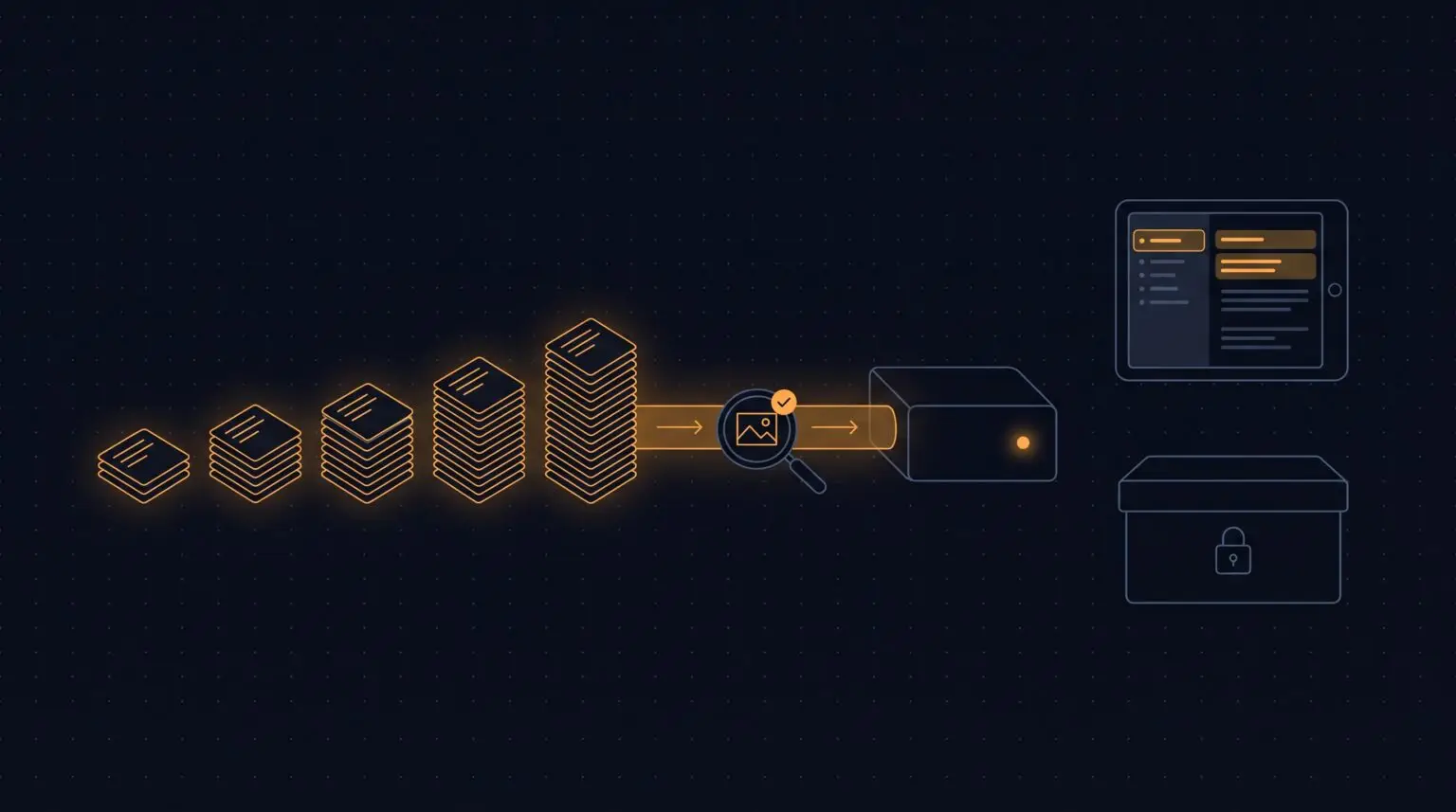
In Part 1 I planned the move from CherryTree to Joplin, built a converter, proved it didn’t lose anything, set up my own sync server at home, and got a two-notebook pilot running on my tablets. This is Part 2: how I moved the other 40,000 notes, what broke along the way, and how I decided what not to move.
How to read this post
It’s a show-and-tell of what I did. New to this? Follow the story and the ⚠ Pitfall boxes. Comfortable with code? Open the “For coders” sections. Names of notebooks and machines are generic on purpose.
Where it ended up
| Notes in Joplin | about 41,000 notes and 14,400 pictures and files |
| How | 5 batches over two days, after the pilot |
| Left in CherryTree | 3 password-protected personal notebooks, on purpose |
| Old notebooks | 280 archived and locked read-only, history kept in git |
| Biggest surprise | 88 pictures that silently didn’t import |
1. Move in batches, newest first
After the pilot I could have moved everything in one overnight run. Instead I sorted my notebooks by when I last edited them and moved them in batches:
| Batch | Notebooks | Notes | Upload |
|---|---|---|---|
| 1 · edited in the last 6 months | 17 | 3,162 | 6 min |
| 2 · 6–12 months | 32 | 5,224 | 13 min |
| 3 · 1–2 years | 77 | 11,078 | 24 min |
| 4 · older than 2 years | 151 | 19,915 | 45 min |
| 5 · one old-format notebook | 1 | 74 | 1 min |
Why newest first? The notes I was actively studying reached my tablets within an hour. If something had gone wrong, it would have shown up on a small batch I knew well, not halfway through 40,000 notes. And each batch taught me something that made the next one smoother.
Every batch followed the same loop: list → convert → check → import → upload → verify → archive. Same steps each time, so nothing got skipped.
⚠ Pitfall: “do it all at once” hides problems
A single giant import fails in giant ways, and you find out at the end. Small batches fail small. If you can sort your notes by “last used”, move the ones you need first.
2. Do the heavy lifting on the fast machine
In the pilot, the home server’s old hard drive took 40 minutes for 1,800 notes. So for the real batches I imported on my desktop, which has a fast SSD, and let sync carry everything up to the server. Batch 2 (5,200 notes) took 8 minutes to import and 13 to upload, about three times as many notes in half the time.
Joplin’s desktop app also surprised me in a good way: it reads the text inside pictures (OCR) and syncs it. Thousands of screenshots of slides and terminal output became searchable on my tablets without me doing anything.
⚠ Pitfall: a password prompt that saved nothing
The import tool needed my sync password once. The first time, I ran the setup command from a tool that doesn’t hand over the keyboard, so it saved an empty password and every request came back “Forbidden”. The second time I mistyped it, and the server locked me out for a minute after a burst of retries. Run password prompts in a real terminal window, and type carefully when you can’t see the characters.
For coders: making the importer batch-friendly
The Part 1 importer worked per top-level notebook and refused anything that already existed. That broke immediately: a new course belongs inside an existing Courses notebook. The rewrite:
- The converter writes a manifest of notebook roots (for example
Courses/Some_Course). The importer walks each path, creates missing parents withmkbook -p <parent-id>, and imports into the leaf by ID. - Sync first, then check: refuse the whole batch, before changing anything, if any leaf already exists or a parent name is ambiguous among its siblings.
- A notebook stored inside another notebook’s folder (say
SchoolandSchool/Year2/Math) must be imported once. The outer one is staged as a hard-linked copy without the inner folder, becausejoplin import <dir>takes everything under<dir>. - Run long jobs detached (
setsid nohup … &, wrapped insystemd-inhibit --what=idle:sleepso the desktop doesn’t sleep mid-upload) and log to a file.
Two small traps while watching those jobs: Python buffers output when writing to a file, so the log stayed empty until the end (fix: python3 -u). And pgrep -f "joplin_import" inside a wait loop matched its own command line, so the loop “saw” the job forever. The bracket trick fixes it: pgrep -f "[j]oplin_import".
3. The 88 pictures that didn’t make it
After the biggest batch, the totals were off: notes matched exactly, but attachments were 36 short. Digging in, I found 12 notes from several batches whose pictures had never been attached. Joplin had imported the text but left each picture as a link to a file on my desktop. On the tablets they would have been broken images. Joplin’s log showed no errors, and the same notes imported perfectly in testing.
The fix was simple once found: re-import those 12 notes, check that every picture attached, and only then move the broken copies to Joplin’s trash. All 12 worked the second time.
⚠ Pitfall: “no errors” isn’t the same as “no problems”
The importer failed silently. I only noticed because I compared totals before and after every batch. Count what went in and what came out, every time, and add a check for the specific thing that can go wrong, here pictures that aren’t attached.
For coders: finding unattached images
An attached image in Joplin is . Anything else that isn’t a web URL is a local path the importer failed to attach. Querying the profile database:
import re, sqlite3
db = sqlite3.connect("file:database.sqlite?mode=ro", uri=True)
local = re.compile(r"![[^\]]*\]\((?!:/|https?:|data:)[^)]+\)")
bad = [t for t, b in db.execute(
        "select title, body from notes where deleted_time = 0") if local.search(b)]
print(len(bad), "notes with unattached images")
The repair re-imports the source .md into the same notebook ID, verifies the new copy has zero local links and the right number of :/ links, and only then runs rmnote (to the trash, not --permanent) on the old one. Check for inbound note links first: a re-import gets a new ID.
4. Archive and freeze the originals
After each batch I moved the converted CherryTree notebooks into one archive folder in my git repository, using git mv so their history follows them. When everything was done, I made that folder read-only. CherryTree can still open an old notebook to look something up, but it can’t save, so nobody (me included) can accidentally edit a copy that’s no longer the real one.
⚠ Pitfall: two folders with the same name
I had two blank template notebooks, both in folders called empty, in different places. Moving them into one archive folder, the second collided with the first. Git refused rather than overwrite, so nothing was lost. Before moving a batch, check for duplicate names within the batch, not just against what’s already archived.
⚠ Pitfall: notebook folders hold more than notes
One course folder also held about 47,000 downloaded exercise files. They moved along with the notebook. Git records a move without storing new copies, so the repository didn’t grow, but look inside a folder before you move it so you’re not surprised.
5. Deciding what not to move
The last few notebooks were the personal ones I’d protected with a password in CherryTree. Joplin has no per-notebook passwords: once imported, a note opens on any device signed in to my account. Joplin can encrypt everything end to end, and the tablet app can be locked with biometrics, but nothing gives the same “this notebook needs its own password” feeling.
So I made a decision instead of a workaround: those few notebooks stay in CherryTree, password-protected, and I only open them on my computers. Everything else lives in Joplin.
⚠ Pitfall: converting private notes makes readable copies
Converting a password-protected notebook produces plain, readable files, and an import would put them in the server’s database, its backups and my nightly git history. When I decided to keep those notebooks encrypted, I deleted the converted copies straight away and set the nightly backup to exclude those notebooks by name, as a safety net.
While checking them I noticed two of the protected notebooks had exactly the same number of notes and pictures. Comparing them note by note showed an exact duplicate, saved under a different password. Every note and every picture matched. I kept one and deleted the other, which git history still keeps.
For coders: keeping private notebooks out of the git mirror
Joplin’s Markdown export puts every attachment in one shared _resources/ folder. Deleting the private notebooks’ folders isn’t enough: their pictures would still be committed. The nightly job deletes the private top-level folders, then removes every file in _resources/ that no remaining .md links to:
used = set()
for d, _, files in os.walk(export_dir):
    for f in files:
        if f.endswith(".md"):
            text = open(os.path.join(d, f), encoding="utf-8").read()
            used |= {os.path.basename(unquote(m))
                     for m in re.findall(r"_resources/([^)\s\"'>]+)", text)}
for f in os.listdir(resources_dir):
    if f not in used:
        os.remove(os.path.join(resources_dir, f))
Test it by treating a normal notebook as “private”. Mine removed all 1,159 of its images and kept all 138 used elsewhere. The export names attachments by title, not Joplin ID, so compare file names, not IDs; my first test got that wrong.
6. Where everything lives now
- Joplin on two tablets and the desktop: all my everyday notes, synced through my home server over a private network.
- A nightly backup of the server, copied to a second machine, plus a readable Markdown copy of every note in git, minus the private notebooks.
- CherryTree on my computers only, for a few password-protected notebooks.
- A read-only archive of all the original CherryTree notebooks, with full history.
What I’d tell you before your own move
- ☐ Move in batches, starting with the notes you use most.
- ☐ Do imports on your fastest machine; let sync do the uploading.
- ☐ Count notes and attachments before and after every batch.
- ☐ Check specifically for pictures that didn’t attach.
- ☐ Archive the originals as you go, then lock them read-only.
- ☐ Decide which notes need stronger protection than your new app offers, and leave those where they’re safe.
- ☐ Delete readable copies of private notes as soon as you’re done with them.
- ☐ Keep your backups, and test restoring them.
Glossary
- Batch: a group of notebooks moved together in one run.
- Import: loading notes into Joplin on one device. Upload/sync: sending them to the server so other devices get them.
- Attachment: a picture or file stored inside Joplin and linked from a note.
- OCR: reading text inside pictures so it becomes searchable.
- Archive: the folder of original notebooks, kept for reference.
- Read-only: files that can be opened but not changed.
- End-to-end encryption: notes are encrypted on your device, so the server only ever stores unreadable data.